🖌️ Map Colours in MED
Give your whole map its own look: a tan dust haze, a cold blue night, a red sunset. Step by step through MED's Map Colours window, what every row does, and how the colours get into the game.
Before you start
- You need MED v2 TEST11 or newer (the Fog row arrived in TEST11; get the current one).
- If you have not yet, read How colours work. Five minutes there saves an evening of flat red trees.
Step 1: open General Information
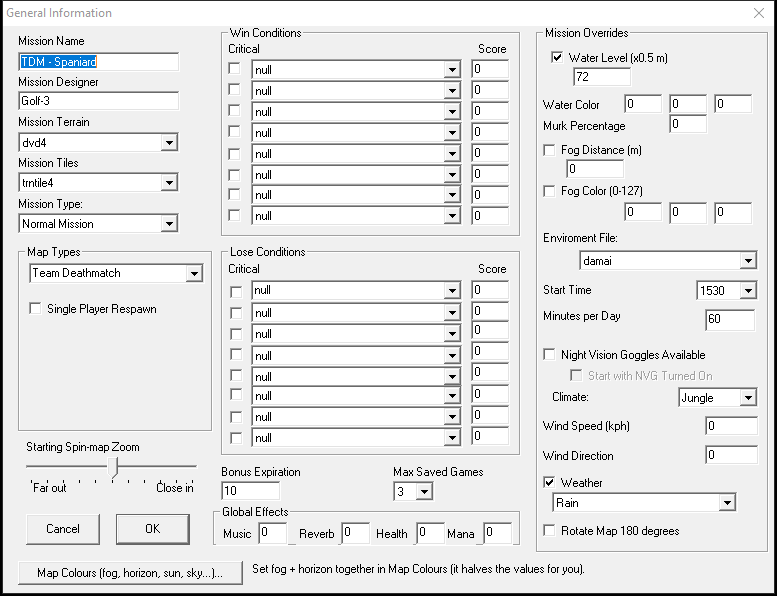
Open your map, then Edit › General Information. At the bottom left there is a new button, Map Colours (fog, horizon, sun, sky...).... Click it.
Step 2: the Map Colours window
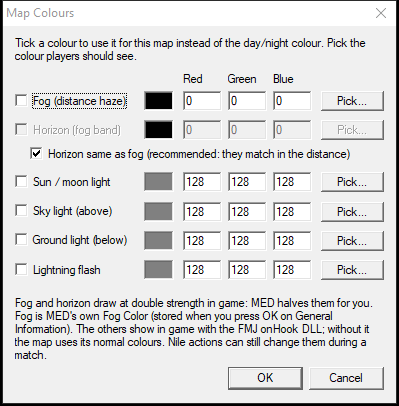
Every row works the same way:
- Tick the colour you want to set. An unticked colour is left to the map's own day/night colours.
- Click Pick... to choose it in the normal Windows colour picker, or type Red, Green and Blue (0-255). The swatch shows what you picked. Picking a colour ticks the row for you.
- Pick the colour you want players to see. For fog and horizon, MED halves the numbers for the game itself, so do not halve them here.
Fog (distance haze)
The colour far-away things fade into. This row is really MED's own Fog Color box on General Information: when you press OK, MED puts half your numbers into that box and ticks it. Pick 220,190,140 and the box will say 110,95,70.
The fog is stored when you press OK on General Information. Press Cancel there and the fog change is dropped (the other Map Colours are kept either way).
Horizon and "Horizon same as fog"
The horizon is the band of sky behind distant things. With Horizon same as fog ticked (the default for a map without colours yet), the Horizon row copies the Fog row and is greyed out, and when you export the map MED copies the fog colour into the horizon again, so the two can never drift apart. Untick it if you want a different horizon, for example a slightly lighter band than the haze.
Sun / moon light, Sky light, Ground light
The three lights on everything in the map. Small changes go a long way: pull the sun a little toward orange and the whole map feels like late afternoon. These are full strength, 0-255.
- Sun / moon light: direct light. Also used at night for the moon.
- Sky light (above): fills in shadows from above.
- Ground light (below): bounce from the ground onto the underside of things.
Lightning flash
The tint of lightning flashes on maps where lightning strikes (a storm in the weather, or a script).
Step 3: OK, OK, save, export
- OK in Map Colours.
- OK in General Information (this stores the fog).
- Save the map as usual, then Export Binary Mission.
The colours are saved inside your .mis (so they come back when you reopen it) and inside the exported .bms (so the game has them).
Seeing it in game
Every player's PC reads the colours from the map when it loads, so there is nothing to set up on the server and no script. What players need is the FMJ onHook DLL: with it the colours are there from the first frame; without it the map looks normal. Make your map now, the colours appear by themselves once players have the DLL.
Maps from TEST10
TEST10 had Map Colours without the Fog row. A map you coloured in TEST10 opens in TEST11+ with Horizon same as fog unticked, keeping the horizon you chose. To switch to the new way: open Map Colours, tick Horizon same as fog, set the Fog row to the colour you want players to see, OK, OK, save and export.
For the curious: what is saved where
- The .mis gets a few lines in its general information block, only when a colour is set:
fmj_env_flags,fmj_env_sun,fmj_env_sky,fmj_env_ground,fmj_env_horizon,fmj_env_lightning, andfmj_env_horizon_fog 1when the horizon follows the fog. Fog stays in MED's normalfog_colorline. - The .bms carries them in the last 28 bytes of its header, which nothing in Joint Ops used before (we checked all 110 maps on the FMJ server: those bytes were always zero). The server sends the whole header to every player who joins, which is how every PC gets the colours.
- A map with no colours ticked exports byte for byte as it did before.