🖥️ Server tab
Where you connect to your server, save its details, link WolfRAT to a game server on the same PC, see which fixes your server has, and patch your server and game exes.
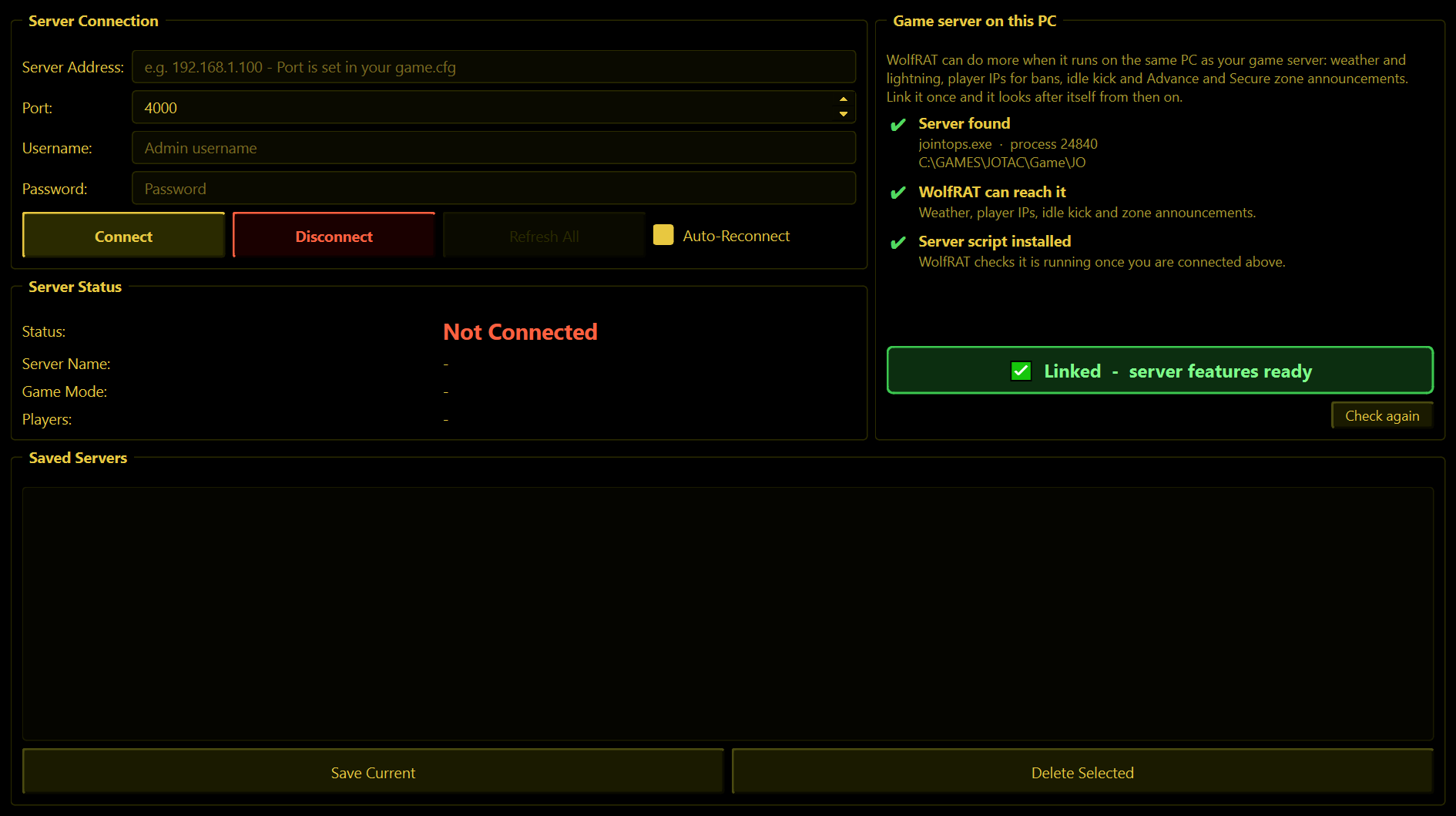
The Server tab has pages along the top: Server connection (everything below, as before), Patches, Live patches (2.9.3), Lag compensation (2.9.7), Server patcher and Client patcher.
Server Connection
| Box | What to put in it |
|---|---|
| Server Address | Your server's IP address. 127.0.0.1 if WolfRAT is on the same PC as the server. |
| Port | The remote_admin_port number from your server's game.cfg. WolfRAT starts on 4000. |
| Username | Your admin name from the server's admin.cfg. |
| Password | The password next to that name in admin.cfg. |
Not sure where those are? Getting started shows you.
- Connect - connects. WolfRAT remembers the last server you connected to and connects to it by itself the next time you start it.
- Disconnect - disconnects and stays disconnected. WolfRAT will not try to reconnect after you press this.
- Refresh All - asks the server for everything again in one go: players, maps, settings, chat and weapons.
- Auto-Reconnect (ticked by default) - if the connection drops, WolfRAT tries again after 3, 5 and 10 seconds, then every 30 seconds until it is back (2.9.6).
Map changes drop the connection for a moment - that is normal. Joint Ops reloads the whole server when the map changes, which closes WolfRAT's connection. With Auto-Reconnect on, WolfRAT is back a few seconds after the new map is up and carries on where it left off.
The password is hidden as you type it (from WolfRAT 2.6.5).
Server Status
Four lines that fill in once you are connected: Status, Server Name, Game Mode and Players.
Game server on this PC (2.7.0)
Some of WolfRAT's features work inside the running game server, so they need WolfRAT on the same PC as the server: weather and lightning, player IPs for bans, idle kick and the Advance and Secure zone announcements. This box on the right of the Server tab tells you whether all of that is ready, and sets it up for you.
It fills itself in a few seconds after you connect to the server (from 2.9.2 WolfRAT finds the server through its own connection, see below). Three lines:
| Line | What it means |
|---|---|
| Server found | The server WolfRAT is connected to is running on this PC. It shows the process number and the server's folder. |
| WolfRAT can reach it | Windows lets WolfRAT look inside the server, and it is a server build WolfRAT knows. |
| Server script | WolfRAT's small script is in server.wac in your server folder. Lightning needs it, and so do the private replies (2.8.2) - WolfRAT adds their lines by itself once linked, and they start at the next map. |
- ⚡ Link WolfRAT to the server - the one button. It checks the server and adds WolfRAT's script to
server.wac. Anything already in that file is kept, and pressing it again does no harm. Players download nothing. - When everything is in place the button turns into a green ✅ Linked - server features ready. You only ever do this once: from then on WolfRAT finds the server by itself every time it connects, even after the server restarts.
- The script switches on at the next map change - the game only reads its scripts when a map loads. Until then the last line says so; afterwards it says Server script running.
- Check again - looks for the server again straight away instead of waiting a few seconds.
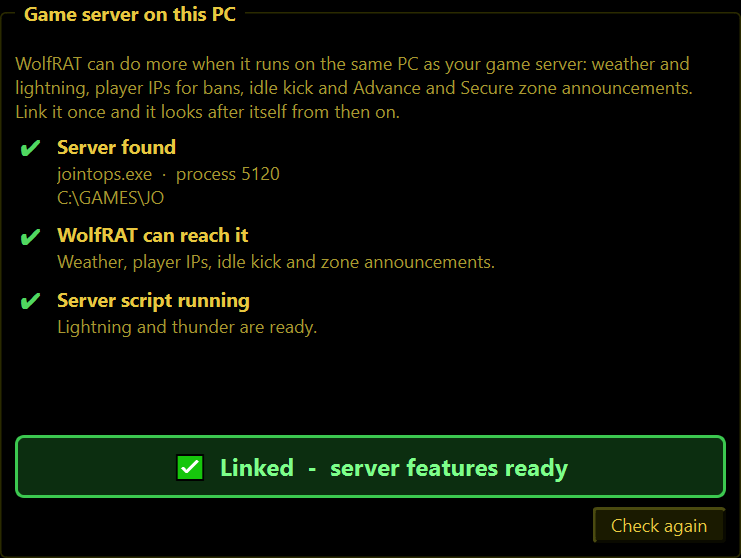
If something is in the way, the box says what in plain words instead:
- Game server not found on this PC - WolfRAT is not connected yet, the server is not running, or it runs on another computer. Connect and WolfRAT finds it within a few seconds. If your server is somewhere else, these extras are not available - everything else in WolfRAT works as normal.
- WolfRAT cannot use it - the line underneath gives the reason. Usually the server runs as administrator and WolfRAT does not: run WolfRAT as administrator too.
Two servers on one PC (2.9.2)
Running two game servers on the same PC, with a WolfRAT for each? That works. Each WolfRAT follows its own connection to the server it is connected to - Windows knows which program is on the other end - so one WolfRAT never reads the other server's players or changes the other server's weather. Give each server its own admin port (remote_admin_port in game.cfg, for example 4000 and 4001) and connect each WolfRAT to its own port. The server's exe can have any name.
Already installed the lightning add-on from the Weather tab? Then you are linked already - the box shows Linked without you pressing anything.
Saved Servers
- Save Current - stores the four boxes above as a line in the list.
- Double-click a saved server to put its details back in the boxes. Then press Connect.
- Delete Selected - removes the highlighted line. There is no "are you sure".
Press Save Current only once per server - pressing it again adds a second identical line.
Patches (2.8.7)
Shows which fixes your game server has. WolfRAT reads the server's exe and game.cfg, and also looks inside the running server, so what you see is what is actually in use. It needs WolfRAT on the same PC as the server (see Game server on this PC).
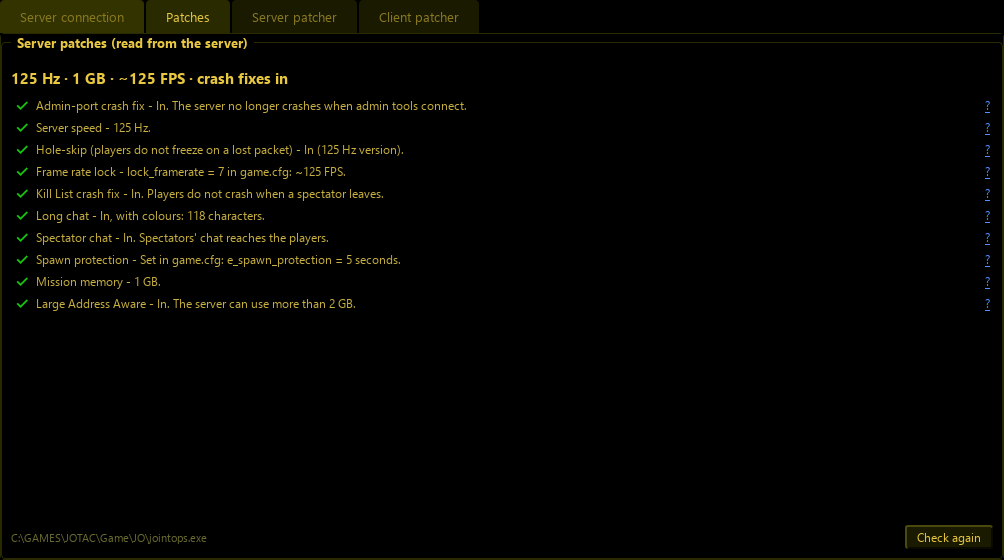
- The top line sums it up: server speed (32, 64 or 125 Hz), mission memory (192 MB, 512 MB or 1 GB), the frame rate and whether the crash fixes are in.
- Each line underneath is one fix. A green tick means it is in; red means missing and orange means worth a look. Problems are listed first.
- Press the ? at the end of a line to read what that fix does.
- If you have swapped in a new exe or changed a file but not restarted the server yet, a line says so - for example 512 MB now - 1 GB after the next server restart.
- It checks again by itself every few seconds; Check again does it straight away.
Frame rate lock warning: if the lock is in but game.cfg does not say lock_framerate = 7, the line turns orange - without it the server runs one CPU core at 100%.
Live patches (2.9.3)
Patches WolfRAT writes into the game server while it runs. Your server exe on disk is not touched and players need nothing. A map change keeps them; they are gone when the server restarts or crashes. Like the Patches page, it needs WolfRAT on the same PC as the server, connected to it.
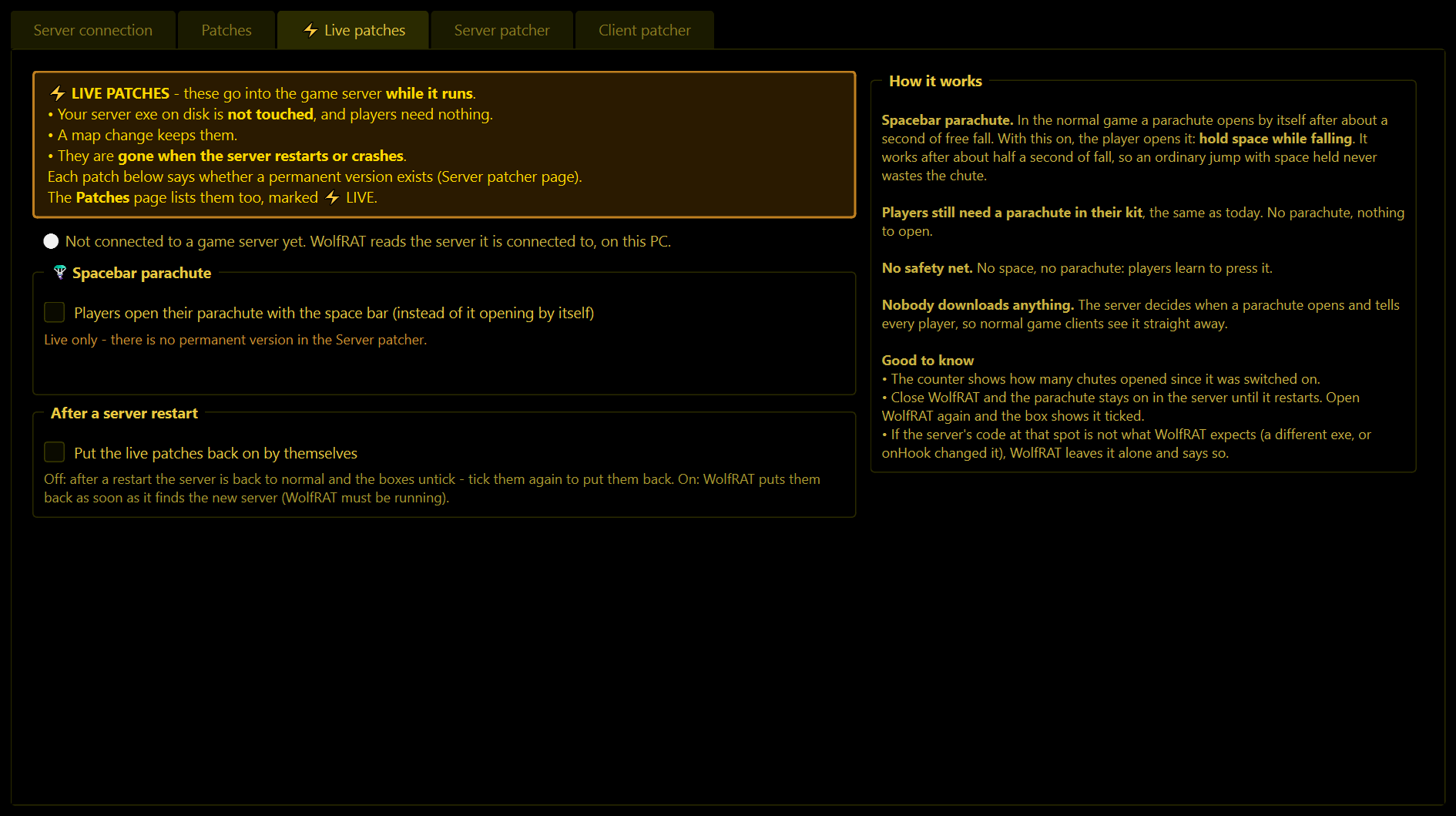
- Spacebar parachute - players open their parachute with the space bar instead of it opening by itself after about a second of free fall: hold space while falling. It works after about half a second of fall, so an ordinary jump with space held never wastes the chute. Players still need a parachute in their kit, and there is no safety net: no space, no parachute. Nobody downloads anything - the server decides when a parachute opens. There is no permanent version in the Server patcher.
- Put the live patches back on by themselves - off: after a server restart the server is back to normal and the boxes untick; tick them again to put them back. On: WolfRAT puts them back as soon as it finds the new server (WolfRAT must be running).
- Close WolfRAT and the parachute stays on in the server until it restarts. Open WolfRAT again and the box shows it ticked. The Patches page lists live patches too, marked LIVE.
Lag compensation (next release)
Its own page next to Live patches. It puts modern lag compensation into the running server, so higher-ping players hit what they see on their screen and don't have to lead their targets. It shows live numbers on how many extra hits it gives. Everything about it is on the Lag compensation page of this wiki.
Server patcher (2.8.7)
Tick what you want and WolfRAT builds a patched copy of your server exe, next to the original. Your server keeps running and the exe it runs is never changed. When the copy is built, WolfRAT tells you step by step how to swap it in.
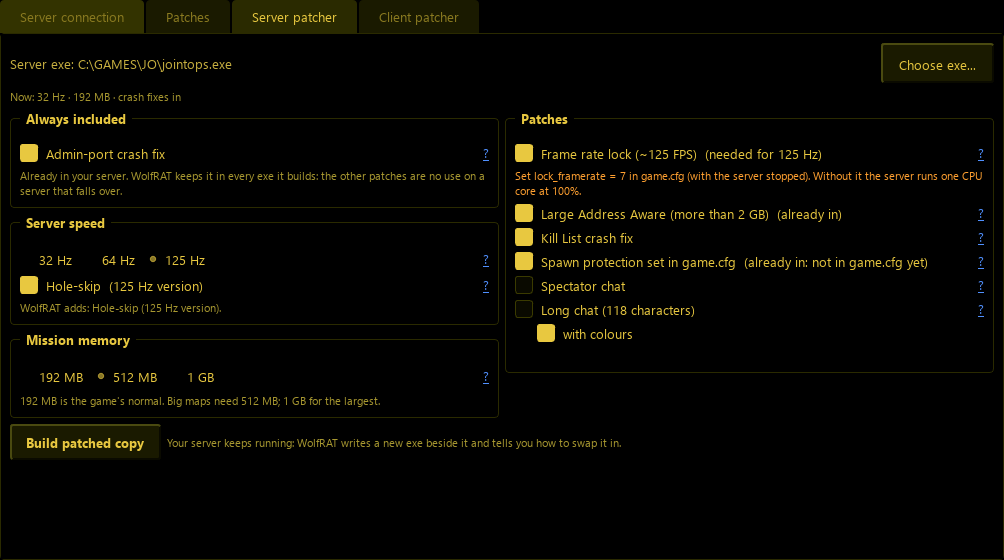
| Choice | What it does |
|---|---|
| Admin-port crash fix | Always included. Without it the server can crash when admin tools such as WolfRAT connect (the "empty server" SYSDUMP). WolfRAT never builds a server exe without it. |
| Server speed | 32, 64 or 125 Hz. At 64 and 125 Hz hole-skip comes with it, in the version made for that speed - it stops players freezing in place after a lost packet. 32 Hz does not need it. |
| Frame rate lock (~125 FPS) | Always included at 125 Hz. Set lock_framerate = 7 in game.cfg, or the server runs one CPU core at 100%. |
| Mission memory | 192 MB (the game's own), 512 MB or 1 GB. Big maps need more. 1 GB also turns on Large Address Aware. |
| Large Address Aware | Lets the server use more than 2 GB of memory. |
| Kill List crash fix | Players no longer crash when a spectator leaves. |
| Spawn protection set in game.cfg | The spawn protection time becomes a game.cfg line, e_spawn_protection (seconds). The line shows what your game.cfg says; a freshly patched server starts at 0 - set your own number. |
| Spectator chat | Spectators' chat reaches the players (they need the client's spectator mode to type). |
| Long chat | Server and admin chat lines up to 118 characters, with colours if you tick with colours. Then tick the long chat box on the Chat tab. |
| Keep claymores after a respawn (2.9.4) | A player's claymores stay armed when they die and redeploy, instead of disappearing. Satchels still go, and a player who leaves the server still takes all their devices. The limit of 4 per player is unchanged. Off until you tick it. |
| Keep AT mines after a respawn (2.9.4) | The same for AT mines (limit 3 per player). A separate tick: have one, the other or both. Both are server-exe only, so players need nothing and nobody is kicked for mismatched files. Greyed out on a client exe (no room). |
| Revive after a fall (2.9.7) | A player who dies and then falls - off a roof or a ledge - can still be revived by a medic. Without it, a body that drops more than about 7 m after death counts as a suicide when it lands, and the game will not let a medic revive it. Off until you tick it. |
| First person lock in vehicles (game.cfg) (2.9.7) | Makes mp_3rdperson_driver in game.cfg work on the server. Set mp_3rdperson_driver = 0 to keep players in first person in vehicles; the build steps remind you. Server exe only, players need nothing. |
Anything already in your server shows (already in). Press Build patched copy, then follow the steps it shows:
- Stop the game server.
- Rename
jointops.exetojointops_before_wolfrat.exe- your backup. - Rename
jointops_wolfrat.exetojointops.exe. - If it asks for a
game.cfgline, add it now, while the server is stopped -game.cfgcannot be changed while the server runs. - Start the server. The Patches page shows the new fixes.
WolfRAT only patches exes it recognises, and checks every byte before changing anything - an exe it does not know is left alone. Choose exe... lets you patch a different exe, for example one for a mod. These are the same patches published at github.com/BadgerLove/jo-server-patches.
Client patcher (2.8.7)
For players. Press Choose exe..., pick your game's exe (whatever it is called), tick what you want and press Build patched copy. WolfRAT writes a patched copy beside it and never changes the one you picked. It remembers your exe for next time.
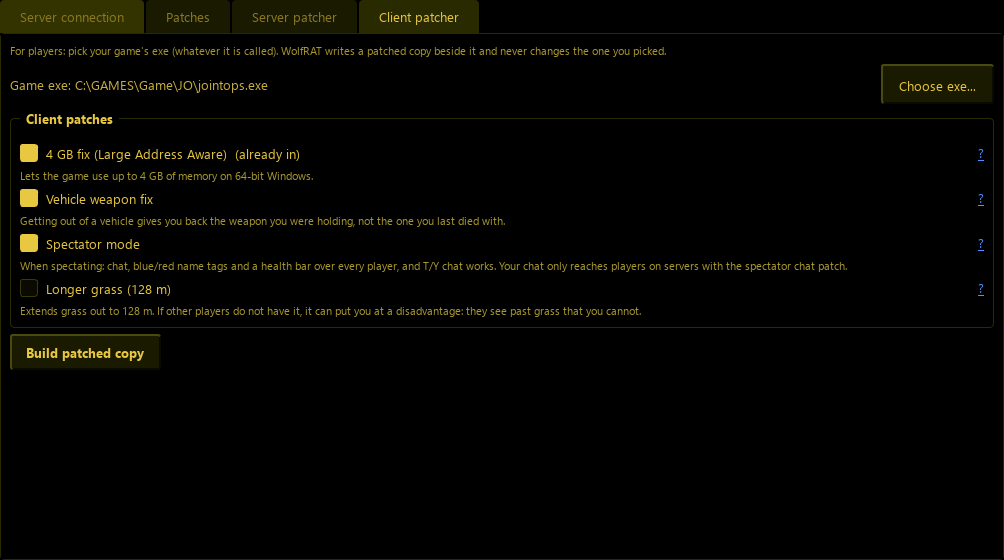
| Choice | What it does |
|---|---|
| 4 GB fix (Large Address Aware) | Lets the game use up to 4 GB of memory on 64-bit Windows. |
| Vehicle weapon fix | Getting out of a vehicle gives you back the weapon you were holding, not the one you last died with. |
| Spectator mode 2 | When spectating you see chat, blue and red name tags and a health bar over every player, and T/Y chat works. Your chat only reaches players on servers with the spectator chat patch. Version 2 (2.9.3) adds a fast spectator camera. Built a spectator exe with an older WolfRAT? The tick says version 1 in - build again to update it. |
| Longer grass (128 m) | Off unless you tick it. Extends grass out to 128 m. If other players do not have it, it can put you at a disadvantage: they see past grass that you cannot. Already in? Untick it to take it out again. |
Then: close the game, rename your exe to ..._before_wolfrat.exe (your backup), rename the ..._wolfrat.exe copy to your exe's name, and start the game.
Hosting and playing from the same folder? You can add client patches to your server exe, but spectator mode and longer grass share space with the server's spectator chat and spawn protection patches - WolfRAT says so and suggests patching a separate copy of the game exe for playing.
The bar along the bottom of the window
This is visible on every tab:
| What you see | What it means |
|---|---|
| ● Connected / ● Disconnected | Green or red. While WolfRAT is retrying it says Reconnecting (Attempt 3)... |
| Game / Map / Players | The game mode, the current map and how many players are on. |
| A small dot | Blinks green each time fresh information arrives from the server - a heartbeat. WolfRAT checks in every 5 seconds. |
| ● Web: On / Off | Whether the phone admin page is running. |
| Mute | Silences WolfRAT's click, connect and disconnect sounds. |
| Check for Updates | Looks for a newer WolfRAT and installs it for you. WolfRAT also has a quiet look by itself a couple of seconds after it starts. |