WolfRAT wiki › Web Admin
📱 Web Admin tab
Look after your server from your phone. WolfRAT serves a small web page that you open in any browser - handy when you are on the sofa, or in the game yourself.
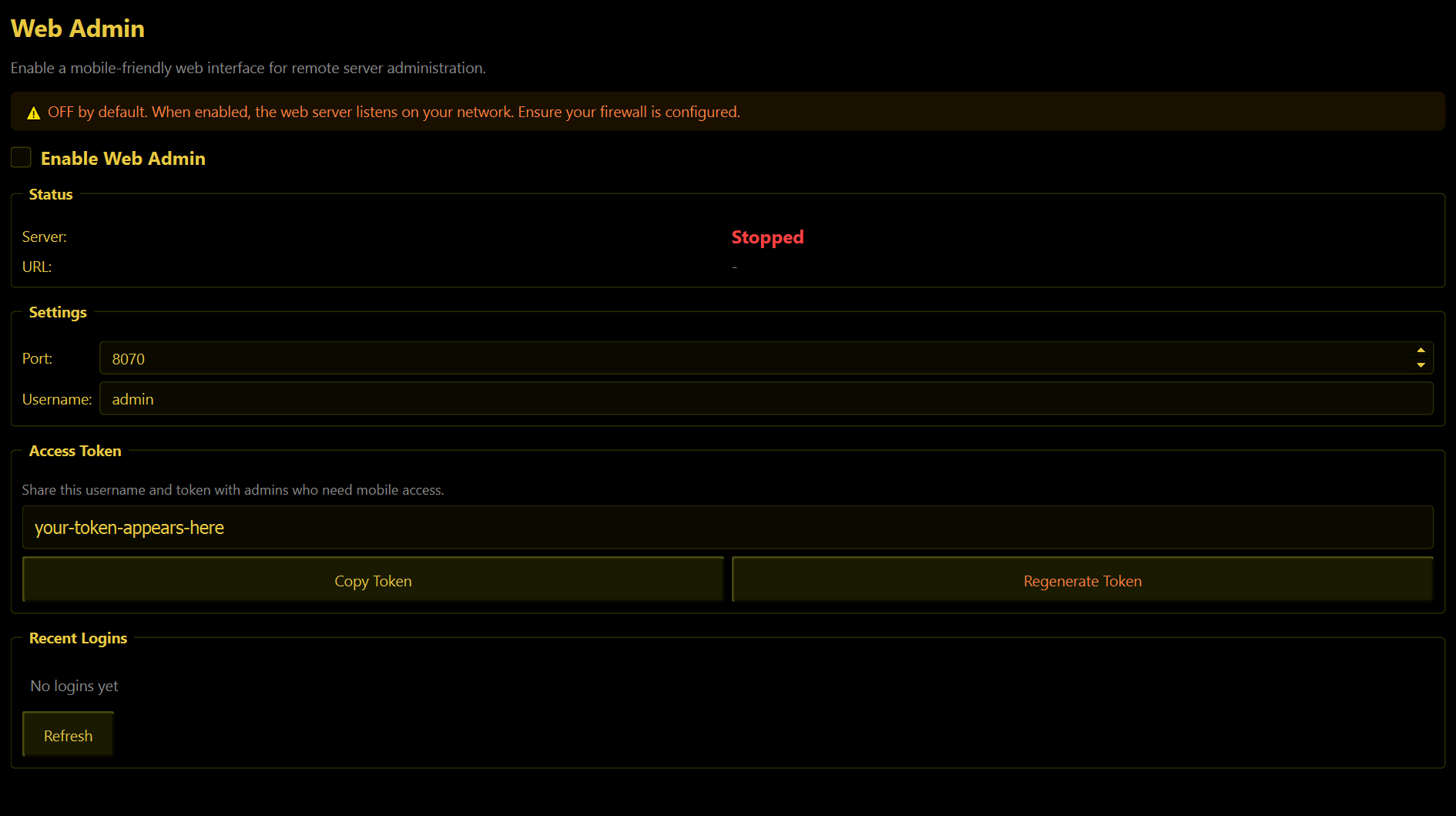
Switching it on
- Tick Enable Web Admin. Status changes to Running, and the bottom of the window shows ● Web: On.
- On your phone, open a browser and go to
http://+ the address of the PC running WolfRAT +:8070- for examplehttp://192.168.1.50:8070. - Log in with the Username (it is
adminunless you change it) and the Access Token from this tab. Press Copy Token and send it to your phone.
The tab shows two addresses once the web admin is running. This PC (http://localhost:8070) only works on the PC itself; Phone / other devices is the one to type into your phone. If it says no network address was found, open a Command Prompt on the PC, type ipconfig and look for IPv4 Address.
WolfRAT remembers that it was switched on and starts it again by itself next time.
What you can do from the phone
| Page | What is on it |
|---|---|
| Dashboard | Server status, player count and game mode, recent chat, and quick buttons: Next Map, Refresh, Sync Chat. |
| Players | Tap a player for Swap Team + Kill, Kill, Zero Score, Kick and Ban. Kick and Ban ask you to confirm. |
| Chat | Read the chat and talk to the server. You can also type any chat command here - !storm 10, !map treasure - and it works as if a moderator typed it in game. |
| Maps | Your rotation. Tap a map to switch to it (asks first). |
The settings
- Port - 8070 to begin with. Only change it if something else on the PC already uses that number.
- Username - what you type at the login screen.
- Access Token - a long random password WolfRAT made for you. Regenerate Token makes a new one and locks out everyone using the old one - do that if the token ever gets into the wrong hands.
- Recent Logins - which addresses have logged in, and when. Worth a glance now and then.
Staying safe
Anyone with the username and token has full admin power, including banning players. Only share it with people you would trust with WolfRAT itself.
- It is off until you switch it on.
- It is made for use at home, on your own network. The page uses plain
http, not the padlockedhttps- so do not open its port to the internet on your router unless you know how to put it behind something secure such as a VPN. - If Windows Firewall asks whether to allow WolfRAT, allow it on Private networks only.
- Five wrong logins lock that device out for 15 minutes (from WolfRAT 2.6.5) - even the right token is refused until the time is up. If you lock yourself out, wait, or restart WolfRAT.